Clock for Second Monitor
If you're running a dual monitor setup and find yourself constantly squinting at the tiny system clock, you're not alone. While your taskbar technically shows the time, it's often too small to read at a glance—especially when you're deep in focus mode.
Here's how to solve this with a free, browser-based solution that gives you a large, always-visible clock for second monitor.
The Problem: System Clocks Are Too Small for Dual Monitor Workflows
Meet Alex, a software developer in San Francisco.
Alex runs a dual monitor setup: his primary 27-inch display for coding, and a secondary 24-inch monitor for Slack, documentation, and browser tabs.
Like most developers, Alex needs to stay aware of time throughout the day:
- 9:00 AM - Daily standup with the London team
- 2:30 PM - Code review meeting with the India team
- 4:45 PM - Demo for stakeholders
The problem? Alex found himself checking the system clock 10-15 times per hour.
"Every time I need to know the time, I have to stop what I'm doing," he explains. "My eyes leave the code editor, find the tiny Windows taskbar clock—it's maybe 12pt font—and squint to read it. Then I go back to coding. That constant eye movement and refocusing gets exhausting by midday."
Worse, checking the time breaks his concentration.
Each time he glances at the clock, his train of thought interrupts. What should be a 1-second time check becomes a 10-second mental reset to get back into deep focus.
And because the small clock is hard to read, Alex felt anxious about missing meetings—which made him check even more frequently, creating a vicious cycle.
What he needed: A large, always-visible clock on his second monitor that he could see with peripheral vision—without moving his eyes from his work or breaking focus.
Why the Built-In System Clock Isn't Enough
Problem 1: Too Small
- Windows taskbar clock: ~12pt font
- macOS menu bar clock: ~13pt font
- Readable from 2 feet away? Yes. Readable from 4-6 feet with a quick glance? Not really.
Problem 2: No Seconds Display
Most system clocks don't show seconds by default. When you need to catch a meeting at exactly 2:30:00 PM, knowing it's "2:29" isn't precise enough.
Problem 3: Disappears in Fullscreen Mode
- Designers working in Figma/Photoshop fullscreen
- Video editors in Premiere Pro
- Developers in distraction-free coding mode
When your primary screen is fullscreen, the taskbar disappears—and so does your time reference.
Problem 4: Breaks Focus Every Time You Check
Every time you check the time, you're interrupting your work:
- Eyes leave your current task (code, design, document)
- Search for the small system clock (taskbar corner or menu bar)
- Refocus your eyes to read 12pt font
- Return to your work and mentally re-engage
This 3-5 second interruption happens 10-20 times per hour for many knowledge workers. That's up to 100 focus breaks per 8-hour workday.
The Solution: A Free Online Clock for Second Monitor
Alex discovered a simple solution: use a browser-based digital clock that fills the entire second screen.
Here's what makes this work better than desktop clock widgets or paid software:
- No installation required - Just open a webpage
- Massive, readable display - Numbers fill the entire screen
- Shows seconds - Perfect for time-sensitive work
- Always visible - Dedicated screen means no distractions
- Free - No subscriptions or software licenses
How to Set Up a Clock for Second Monitor (3 Minutes)
Step 1: Open the Digital Clock Website
On your second monitor, open a browser and visit:
You'll immediately see a clean, large digital time display.
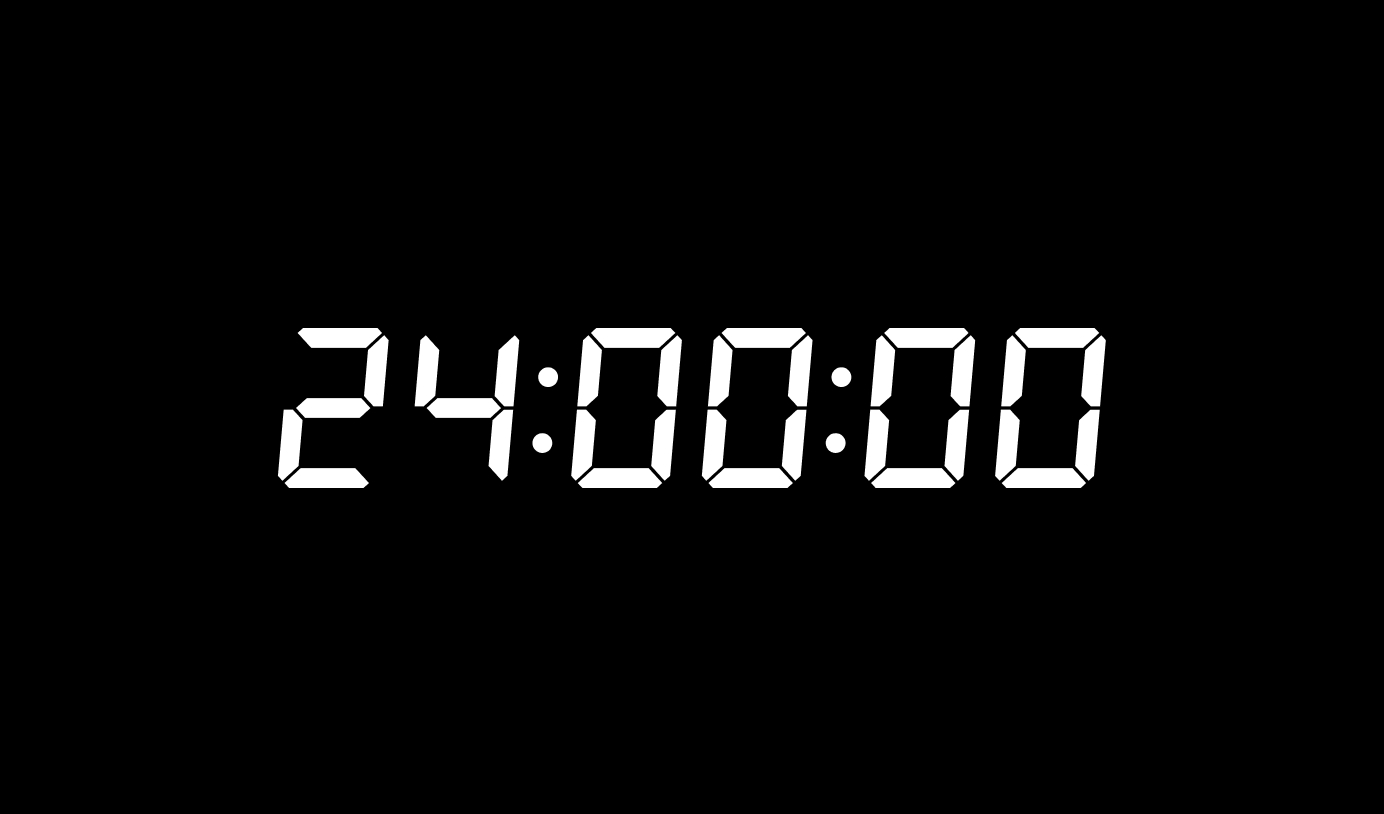
Step 2: Customize the Display
Click the Settings icon (gear symbol in the top-right corner)
Recommended settings for dual monitor setups:
- Format: Choose 24H or 12H based on your preference
- Show Seconds: Toggle ON (critical for meeting timing)
- Clock Template: Select a theme that matches your workspace
- Dark - Easy on the eyes, great for dark-themed setups
- Light - High contrast, easy to read from a distance
- Digital-Blue - Classic LED clock aesthetic
Step 3: Enter Fullscreen Mode
Click the fullscreen button in the top navigation bar.
The clock will expand to fill your entire second monitor. Now you have:
- Time visible at all times
- Readable from across the room
- Precise to the second
Tip: On Windows, you can also press F11 in most browsers to toggle fullscreen.
Step 4: Keep the Screen Awake
By default, your second monitor might sleep after inactivity.
Solution: Click the sun icon (Keep Screen On button) in the top navigation.
This prevents your second monitor from sleeping, ensuring the clock stays visible all day.
Frequently Asked Questions
Can I use this with three or more monitors?
Yes! If you have a triple-monitor setup, you can:
- Dedicate one entire monitor to the clock
- Or split one monitor: clock on one half, reference docs on the other
Simply open the clock website in a browser window and position it where you want it.
Will this work on Mac, Windows, and Linux?
Yes. Since it's browser-based, it works on:
- macOS (Safari, Chrome, Firefox, Edge)
- Windows (Chrome, Edge, Firefox, Brave)
- Linux (Chromium, Firefox)
The clock automatically syncs with your system time, so it's always accurate.
What if I need to use my second monitor for other tasks?
You have two options:
Option 1: Keep the clock in a corner
- Don't use fullscreen mode
- Resize the browser window to take up just a portion of the screen
- Position it in the top-right corner while using the rest of the monitor normally
Option 2: Toggle fullscreen when needed
- Work normally on your second monitor
- When you have time-sensitive work, press F11 to fullscreen the clock temporarily
- Exit fullscreen when done
Does this require an internet connection?
Initial setup: Yes, you need internet to load the webpage.
After loading: The clock continues working even if your internet disconnects. It uses your computer's system time, so it stays accurate offline.
However, if you close the browser or refresh the page, you'll need internet to reload it.
Can I customize the colors and size?
Yes! The clock offers multiple themes:
- Classic digital LED styles (green, blue, red, amber)
- Modern minimal themes (dark, light, pure dark)
- Customizable date display (show/hide day and year)
All themes are designed to be highly readable from a distance.
Will this drain my computer's resources?
No. The clock is extremely lightweight:
- Uses less than 50MB of RAM
- Minimal CPU usage (comparable to a single browser tab)
- No background processes or system load
It's far more efficient than installing dedicated clock software.
What about dual monitor setups with different resolutions?
The clock automatically adapts to your screen resolution. Whether your second monitor is:
- 1080p (1920x1080)
- 1440p (2560x1440)
- 4K (3840x2160)
The clock scales proportionally to fill the screen in fullscreen mode, or fits within your browser window size.
Alternative Use Cases Beyond Dual Monitors
While this guide focuses on clock for second monitor setups, here are other creative uses:
Old laptop as a desk clock:
- Repurpose an unused laptop by keeping it open on your desk
- Display the clock fullscreen
- Instant large desk clock (free!)
TV as a workspace clock:
- Connect your computer to a TV via HDMI
- Use the TV as a giant clock display
- Great for home offices, studios, or workshops
Tablet as a portable clock:
- Use an iPad or Android tablet
- Place it on your desk stand
- Portable large clock you can position anywhere
Conclusion: The Best Clock for Second Monitor Is Free
Alex's productivity transformed after setting up a large clock on his second monitor.
Before:
- Checked the tiny system clock 100+ times per day
- Eye strain from constantly refocusing between large screen and small text
- Lost concentration every time he needed to check the time
- Felt anxious about time, which made him check even more frequently
After:
- Sees the time with peripheral vision—no eye movement needed
- Eyes stay comfortable throughout the day
- Maintains deep focus because time is always visible
- Feels a natural sense of time passing, which actually improves concentration
His setup:
- Primary monitor (27"): VS Code for development
- Second monitor (24"): Fullscreen digital clock (top half) + terminal window (bottom half)
Total cost: $0 Setup time: 3 minutes Daily value: Priceless
Your Next Steps:
- Open digitalclock.live on your second monitor
- Click fullscreen to maximize the display
- Enable "Keep Screen On" (sun icon) to prevent sleep
- Optional: Customize the theme and toggle seconds display
That's it. You now have a large, always-visible clock for second monitor that keeps you on schedule without breaking your focus.